
How to Install IPTV Smarters Pro on Firestick (Step by Step)
If you are searching for how to install IPTV Smarters Pro on a Firestick, you are in the right place. This guide walks you through installing Smarters Pro with Downloader, entering the IPTV Smarters downloader code, and logging in correctly so everything loads the way it should.
Quick note: IPTV Smarters is a player app. It does not come with channels, so you will need IPTV login details from your provider.
What You Need Before You Start
Fire TV Stick connected to Wi-Fi
Amazon account signed in
Enough storage space (a few hundred MB is plenty)
IPTV login details (Xtream Codes API or M3U playlist)
Optional setup help from Global IPTV Canada
Extra tutorials and troubleshooting tips on the Global IPTV Blog
Step 1: Enable “Apps from Unknown Sources” on Firestick
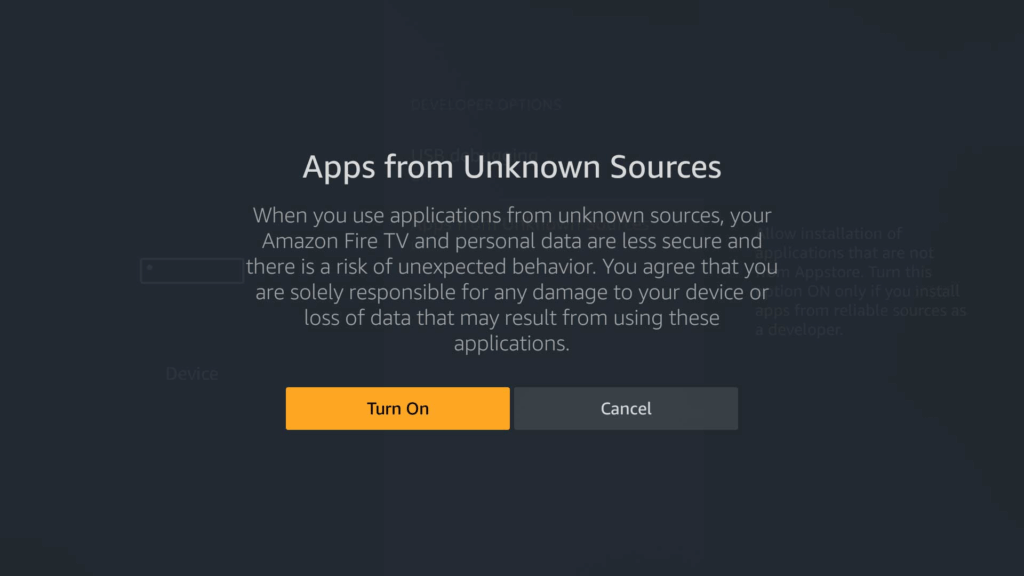
To install third-party apps through Downloader, you need to allow installs from unknown sources.
Go to Settings
Select My Fire TV
Open Developer Options
Turn on Apps from Unknown Sources
If you see Install unknown apps, open it and enable Downloader
If you want a visual walkthrough, use this one-time guide: How To Allow Apps From Unknown Sources On Fire TV Stick.
Step 2: Install the Downloader App
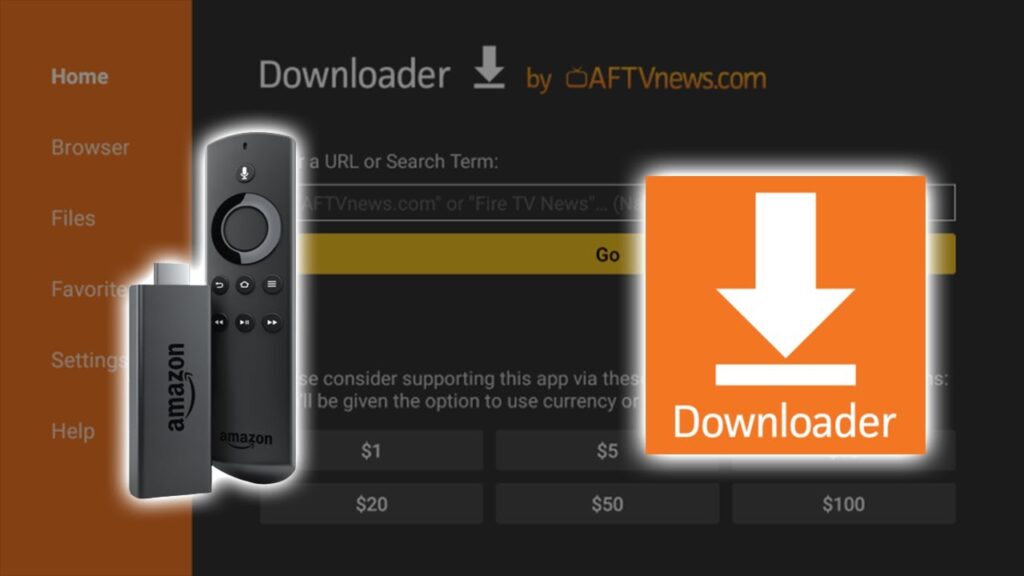
From the home screen, select Find (search)
Type Downloader
Select Downloader and click Download/Get
Open Downloader once it installs
If you prefer a step-by-step video for this part, here is one: How to Install Downloader on Firestick & Fire TV Devices.
Step 3: Install IPTV Smarters Pro Using the Downloader Code
Now you will install IPTV Smarters Pro using the Downloader code method.
Open Downloader
Allow permissions if prompted
Click the URL or Code field
Enter the iptv smarters downloader code: 6468112
Press Go
When the file finishes downloading, select Install
Choose Done after installation
Delete the installer file when prompted to save storage
For reference and official info about the app, you can visit the IPTV Smarters Pro website.
Step 4: Open IPTV Smarters Pro and Log In
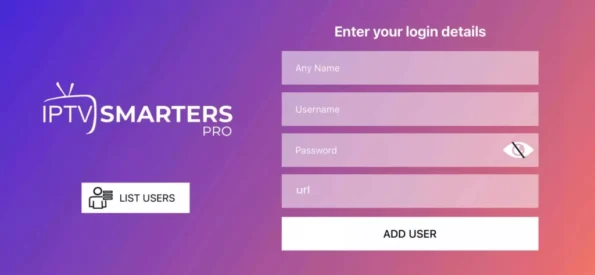
Launch IPTV Smarters Pro
Choose Login with Xtream Codes API (recommended for most users)
Enter:
Name (anything you want)
Username
Password
Server URL (the portal link your provider gives you)
Select Add User, then Login
If your provider gave you an M3U link instead, choose the playlist option and paste the URL.
Step 5: Quick Fixes if Something Does Not Work
App installs but will not open
Restart Firestick: Settings → My Fire TV → Restart
Clear cache: Settings → Applications → Manage Installed Applications → IPTV Smarters Pro → Clear cache
Buffering or freezing
Use 5 GHz Wi-Fi or move closer to the router
Close background apps
Test during off-peak hours to compare performance
No channels appear
IPTV Smarters does not provide content
Re-check username, password, and server URL
Confirm your subscription is active
FAQ
How do I download IPTV Smarters Pro to my Firestick?
Install Downloader from the Amazon Appstore, enable unknown sources, then enter the iptv smarters downloader code 6468112 to download and install IPTV Smarters Pro.
How to install IPTV Smarters Pro on TV?
If your TV runs Fire TV OS, follow the same steps as Firestick. If your TV runs a different OS (Android TV, LG webOS, or Samsung Tizen), the installation method can differ, but you still log in using Xtream Codes or an M3U playlist.
Is Amazon Firestick blocking IPTV?
Firestick does not block IPTV as a technology. It can limit how certain third-party apps are installed, which is why enabling unknown sources and using Downloader is often required.
What is the downloader code for IPTV Smarters?
The IPTV Smarters downloader code in this guide is 6468112.
Do I need an IPTV subscription to use Smarters Pro?
Yes. Smarters Pro is a player, so you need IPTV credentials (Xtream Codes API or M3U) from your IPTV provider.
Which login method is better, Xtream Codes or M3U?
Xtream Codes is usually easier because it loads live TV, VOD, and EPG more cleanly. M3U works too, but it can be less organized depending on the playlist.